# Promotional Calendars

## 📆 What are Promotional Calendars?

Promotional calendars are a core component of the Rewards platform, allowing you to create themed calendars for events, challenges, and seasonal experiences tied to specific dates or holidays (e.g., Christmas Advent Calendars). These calendars offer consistent, engaging touchpoints that encourage players to log in frequently to claim rewards.

## 🛠️ Setting up Promotional Calendars

You can create new Calendars and manage existing ones under **Rewards -> Promotional Calendars.**

<figure><img src="https://3654650655-files.gitbook.io/~/files/v0/b/gitbook-x-prod.appspot.com/o/spaces%2F-MGrxN2ttYCb8JwJc2TS%2Fuploads%2FQieEn8nX2lq3jM12kbAW%2FCalendar%20-%20Accessing.gif?alt=media&#x26;token=66abc0cb-8bb9-424e-9193-8478d9f7caf0" alt=""><figcaption><p>Accessing the Promotional Calendars section</p></figcaption></figure>

To get started, click **Create New Calendar** in the top-right corner of your screen.

Next, provide a name for your Calendar: one for internal use and one for external visibility. Once named, you’ll be directed to the next page to continue setup.

<figure><img src="https://3654650655-files.gitbook.io/~/files/v0/b/gitbook-x-prod.appspot.com/o/spaces%2F-MGrxN2ttYCb8JwJc2TS%2Fuploads%2FaIf9Biiy5KVP1MnUVqEv%2FCalendar%20-%20Creating%20Calendar.gif?alt=media&#x26;token=664fd09d-bde1-442e-ae9d-7e9318cfddda" alt=""><figcaption><p>Creating a new Promotional Calendar</p></figcaption></figure>

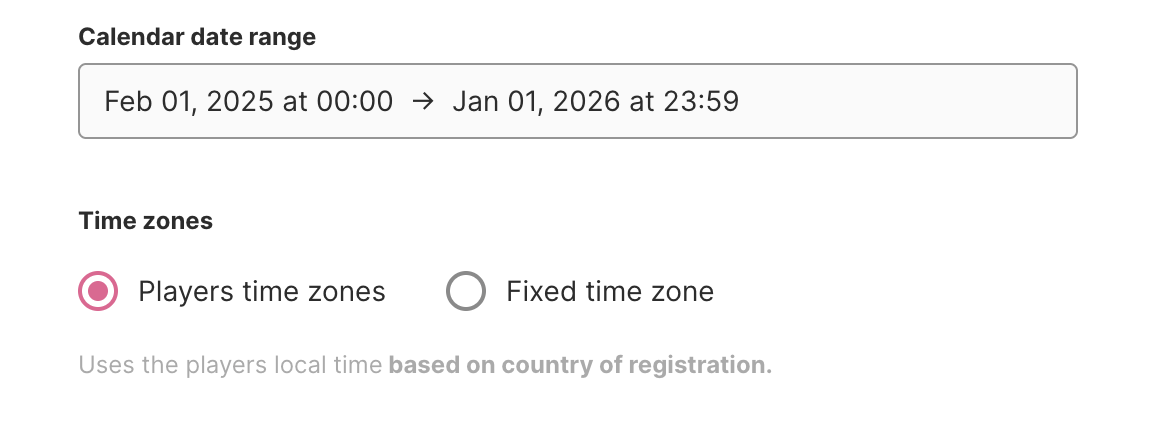
From this page, set the start and end dates for your Calendar's availability. These dates will determine between which dates the calendar will show up for players in the Rewards page of your site.&#x20;

<figure><img src="https://3654650655-files.gitbook.io/~/files/v0/b/gitbook-x-prod.appspot.com/o/spaces%2F-MGrxN2ttYCb8JwJc2TS%2Fuploads%2FW9wjwyHRAMu0TwWgdSXh%2FScreenshot%202025-11-10%20at%2014.47.18.png?alt=media&#x26;token=82e3d693-6a6d-4f4e-8e77-f39451abc90e" alt=""><figcaption><p>Start and End dates of the Promotional Calendar</p></figcaption></figure>

By default, the system is using the player's **Country of Registration** to determine the timezones in which the calendar should be available, but you can override this and select your own timezone.

{% hint style="success" %}
For the start date, you can **publish** your calendar **before the first offer becomes available**. If you do this, the system will display a countdown, letting players know that the calendar will be accessible in X days and hours.

You can also set the calendar to **end after the last offer becomes available**. In this case, the system will display the calendar along with all the offers the player has claimed, and the calendar will be removed on the specified end date.
{% endhint %}

## :door: Setting up Doors

The next component of your Promotional Calendar is the Doors. Each Door represents a specific date on which a bonus or prize will be offered to players, and you can add as many doors as you want in a calendar.&#x20;

You can also scramble the order in which Doors are displayed to players, creating a real-life Advent Calendar effect for a more engaging experience.

<figure><img src="https://3654650655-files.gitbook.io/~/files/v0/b/gitbook-x-prod.appspot.com/o/spaces%2F-MGrxN2ttYCb8JwJc2TS%2Fuploads%2FHrnw59OUl3YOSKFuqbZY%2Fimage.png?alt=media&#x26;token=fe9e8e44-c403-4e85-9d37-f131060b2b19" alt=""><figcaption><p>Option to scramble the order of Doors</p></figcaption></figure>

To add a Door, click the **Add Door** button. You’ll then need to provide the following details:

* **Name**: Only displayed internally.
* **Bonus to be Released**: Bonus that will be claimed by the player once they open the door. Choose a bonus from the dropdown menu of your previously created [Bonuses](https://www.fasttrack-solutions.com/en/resources/knowledge-base/rewards/bonuses).
* **Door's Available Dates**: Define the timeframe when the Door will be available for players to claim. This will be evaluated based on the player’s timezone, determined by their Country of Registration.

<figure><img src="https://3654650655-files.gitbook.io/~/files/v0/b/gitbook-x-prod.appspot.com/o/spaces%2F-MGrxN2ttYCb8JwJc2TS%2Fuploads%2F56tpnLLVR4Xg1qWyizvV%2FCalendar%20-%20Creating%20Doors.gif?alt=media&#x26;token=b9a049a7-4a61-4a50-b62e-319c475ae043" alt=""><figcaption><p>Creating Doors for a Promotional Calendar</p></figcaption></figure>

Once the door is created, you will be taken to the Door Details page, where you can customize your Door's settings:

* Add or update the Door’s image.
* Edit the Door’s internal name.
* Change the assigned Bonus.
* Adjust the dates when the Door will be available for players to claim.

After making any changes to a Door, be sure to click **Save** to ensure your updates are not lost.

<figure><img src="https://3654650655-files.gitbook.io/~/files/v0/b/gitbook-x-prod.appspot.com/o/spaces%2F-MGrxN2ttYCb8JwJc2TS%2Fuploads%2FShRgM7rlE3hJNtXDij1H%2FCalendar%20-%20Upload%20Door.gif?alt=media&#x26;token=ab6d20fb-d876-4733-ac26-453b1951f9cb" alt=""><figcaption><p>Adding a Door's Image</p></figcaption></figure>

## 📢 Publishing a Promotional Calendar

Once all your Doors are created, it’s time to publish your Promotional Calendar—but first, make sure it has been reviewed for quality assurance (QA) purposes.

You can change the Calendar’s status from the **Settings for Calendar** section. The available statuses are:

* **Draft**: Automatically assigned when the Calendar is created.
* **QA**: Use this status after completing the Calendar if you want someone to double-check and test it. Note: For now, this is only for your team to know that the calendar needs to be testes, as the QA status for Calendars does not initiate a formal [Quality Assurance](https://www.fasttrack-solutions.com/en/resources/knowledge-base/ft-crm/quality-assurance) process.
* **Published**: Select this status when the Calendar has been approved. Only Calendars with this status will appear on the Rewards page of your site.
* **Unpublished**: Use this status to disable and remove the Calendar from your Rewards page. This status is also automatically assigned when the Calendar expires.

<figure><img src="https://3654650655-files.gitbook.io/~/files/v0/b/gitbook-x-prod.appspot.com/o/spaces%2F-MGrxN2ttYCb8JwJc2TS%2Fuploads%2FfjUhsED2cdfAWo9i7etB%2FCalendar%20-%20Update%20Status.gif?alt=media&#x26;token=eba97926-f933-40d2-a705-e511341f5f3c" alt=""><figcaption><p>Updating a Promotional Calendar's Status</p></figcaption></figure>

{% hint style="warning" %}
Whenever you make updates in the **Settings for Calendar** section, be sure to click the **Save** button to ensure your changes are not lost.
{% endhint %}

Now that your Calendar is ready to go, make sure you head to the [Menu tab of My Rewards](https://www.fasttrack.ai/en/resources/knowledge-base/rewards/my-rewards#menu) to enable it for your players. There you'll be able to select your Calendar, add a name, an emoji and segment to display it only for the players of your choice!