# Branding

## :toolbox: Getting Started

Branding settings can be accessed from **Rewards > My Rewards** and clicking on the version you wish to edit. Here, you can configure a **base branding profile** that you can adjust for each Communication Profile configured on your Fast Track CRM environment.

In our example, we will show you how to style the Rewards program for our UK players on the **Starry Spins** Origin.

<figure><img src="https://3654650655-files.gitbook.io/~/files/v0/b/gitbook-x-prod.appspot.com/o/spaces%2F-MGrxN2ttYCb8JwJc2TS%2Fuploads%2FbUFhyza5rK8rZYOB4vXF%2FBrandingRewardsUK.gif?alt=media&#x26;token=fe115698-bc33-42ef-91f1-001ebfc19804" alt=""><figcaption><p>Accessing branding settings for Starry Spins - UK Communication Profile</p></figcaption></figure>

{% hint style="info" %}
If you have the Origin solution enabled on your environment, you will be able to configure different versions of your Rewards program and apply different branding settings for each Origin.
{% endhint %}

Next, you can click on **Base branding profile** for Starry Spins, any changes made here will apply to the base branding settings for **all** Communication Profiles.

Otherwise, click on **Branding adjustments for Communication Profile - UK** to amend the styling for UK players only.

## :art: Branding Studio

Clicking on a branding profile will open the Branding Studio, where you can fine-tune the styling of your Rewards program. Branding settings (AKA the Branding Studio) can be accessed from **Rewards > My Rewards** by clicking on the version you wish to edit. Here, you can configure a base branding profile that can be adjusted for each Communication Profile in your Fast Track CRM environment.

<figure><img src="https://3654650655-files.gitbook.io/~/files/v0/b/gitbook-x-prod.appspot.com/o/spaces%2F-MGrxN2ttYCb8JwJc2TS%2Fuploads%2FJ0bMdMs8TvR0B61URCVa%2FKapture%202025-07-14%20at%2010.29.30.gif?alt=media&#x26;token=2f94e40f-ba52-4eb9-a06d-baeb39c8a4da" alt=""><figcaption><p>Accessing branding settings for Starry Spins - UK Communication Profile</p></figcaption></figure>

{% hint style="info" %}
If you have the Origin solution enabled on your environment, you will be able to configure different versions of your Rewards program and apply different branding settings for each Origin.
{% endhint %}

Click **Edit Appearance** to open the Branding Studio. Here you will find three tabs to customise your Rewards experience:

* **Appearance** – Edit colours, fonts, base settings, and the styling of individual components, such as the Modal, Popup, Progress Bar, Cards, Buttons, Menu, and Notifications. You can also control the speed of the wheel and other visual elements.
* **Translations** – Translate all Rewards content, including buttons, error messages, and popups.
* **Components** – Enable or disable Rewards-specific features, such as Loyalty, Virtual Currencies, and Levels.

Any changes you make will be reflected on the preview panel on the left, so you can instantly see the results — for example, changing the background colour of the Rewards modal.

In this article, we will demonstrate how to style the Rewards program for UK players on the Starry Spins Origin.

Any changes made will be reflected on the preview on the left, for example, here's how you can change the background color for the Rewards modal:

<figure><img src="https://3654650655-files.gitbook.io/~/files/v0/b/gitbook-x-prod.appspot.com/o/spaces%2F-MGrxN2ttYCb8JwJc2TS%2Fuploads%2FDnhvwogkoNqnKatJDIIj%2FKapture%202025-07-14%20at%2011.22.14.gif?alt=media&#x26;token=3d146c5e-91d8-4ce5-9c49-45f39bf87578" alt=""><figcaption><p>Branding Studio</p></figcaption></figure>

### :wheel\_of\_dharma: W**heel**

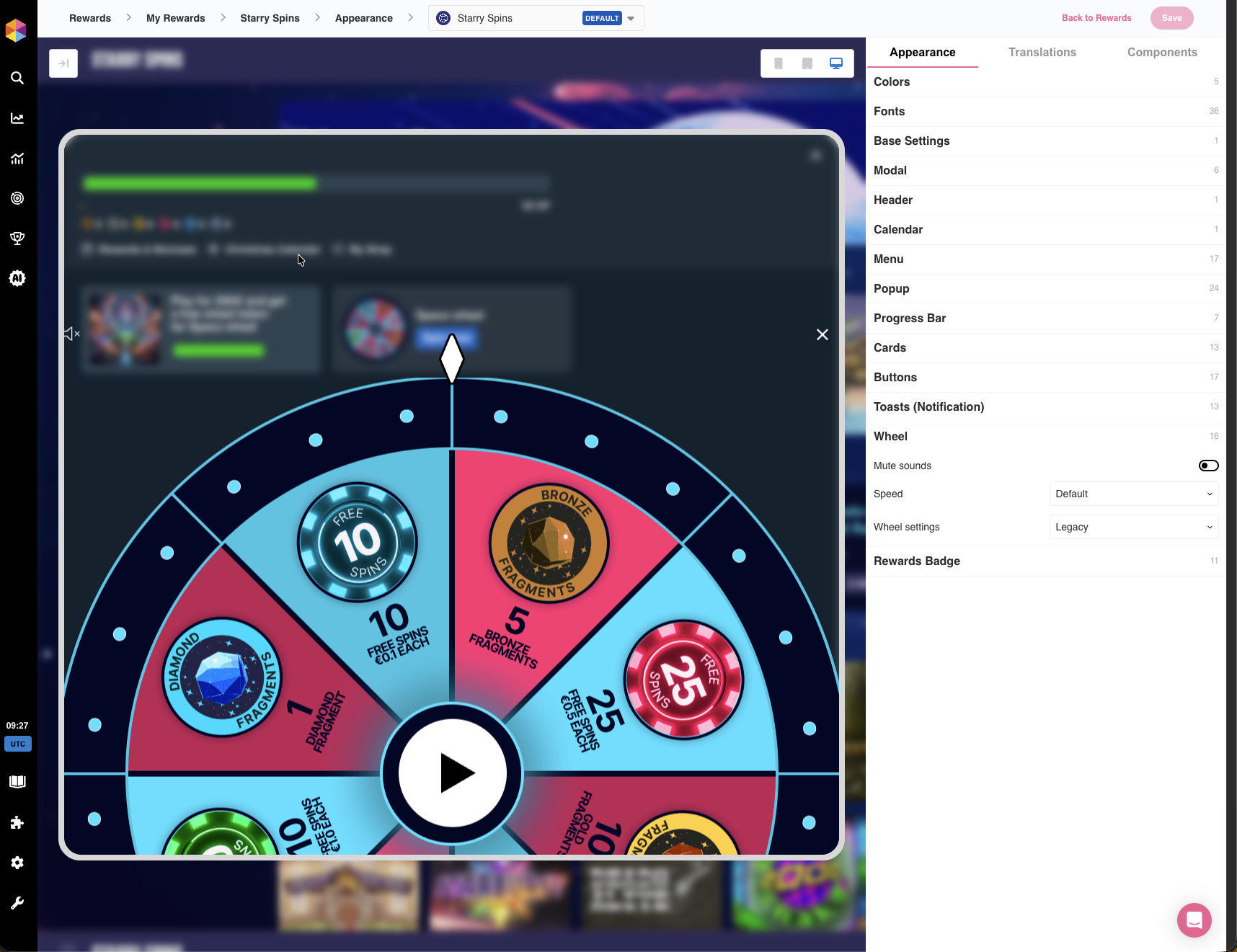
When the wheel version is set to "**Legacy"**, it uses predefined positioning and scaling settings optimised for different device types. This mode provides a consistent, out-of-the-box experience with automatic responsive behaviour.

<figure><img src="https://3654650655-files.gitbook.io/~/files/v0/b/gitbook-x-prod.appspot.com/o/spaces%2F-MGrxN2ttYCb8JwJc2TS%2Fuploads%2FETL9AKDAJDqJdEVUL9Nv%2Fimage.png?alt=media&#x26;token=f45a2fbd-5c88-4c33-aa94-064d46ed9b52" alt=""><figcaption><p>Legacy Wheel settings</p></figcaption></figure>

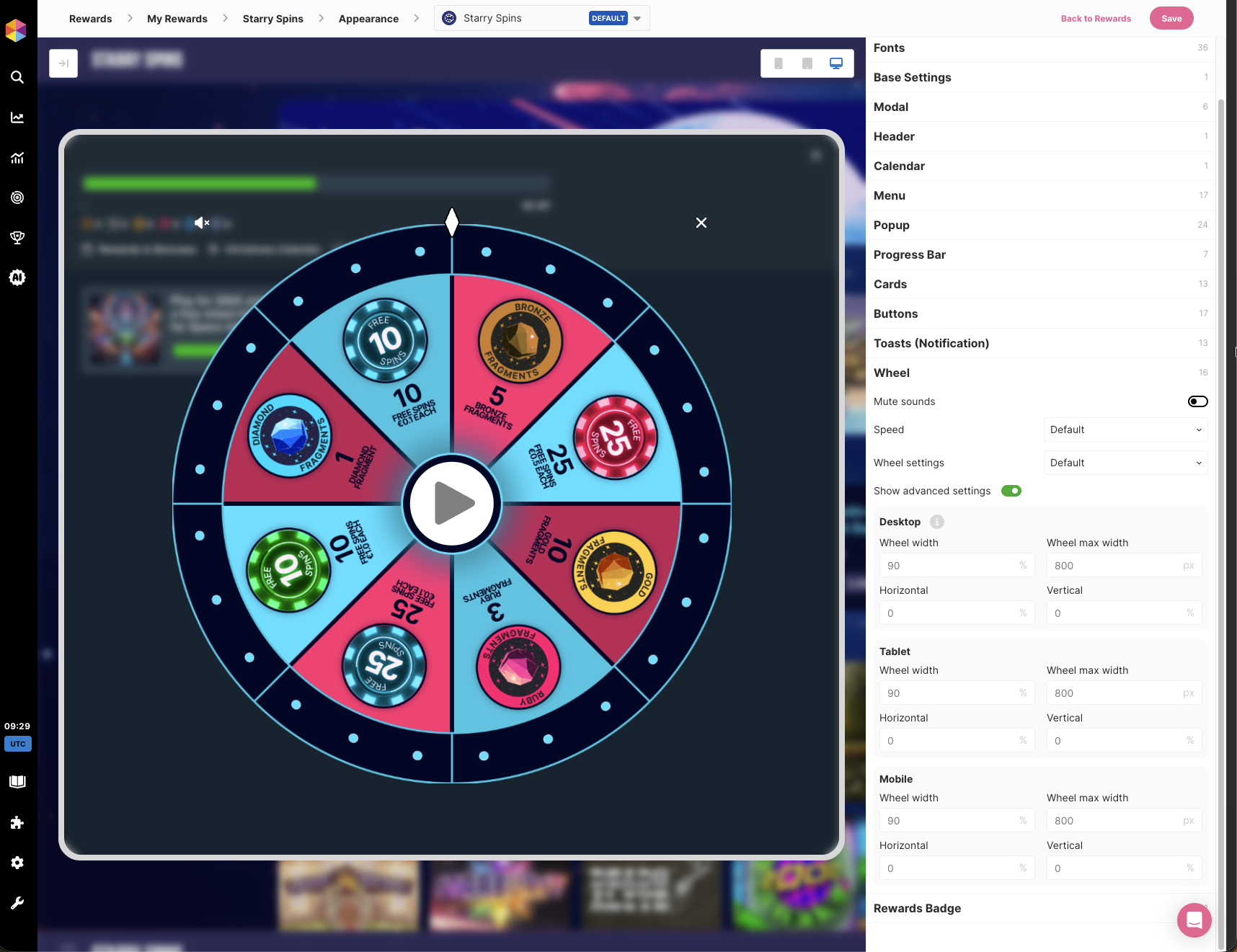
Selecting "**Default**" will unlock advanced customisation options, allowing full control over wheel positioning and sizing across different device types (Desktop, Mobile, Tablet).\
\
Using the wheel with it's default width and positioning will make the wheel centred with optimal sizing for all mentioned device types.

<figure><img src="https://3654650655-files.gitbook.io/~/files/v0/b/gitbook-x-prod.appspot.com/o/spaces%2F-MGrxN2ttYCb8JwJc2TS%2Fuploads%2FT3KIJgTbZQXr9G01lxaq%2Fimage.png?alt=media&#x26;token=4c381809-f995-49d2-8c24-6b60a8aee59a" alt=""><figcaption><p>Default Wheel settings</p></figcaption></figure>

When using the default wheel settings, you can adjust:

* **Wheel width**: Set the wheel width as a percentage of viewport width
* **Wheel max Width**: Define maximum pixel width for the wheel
* **Horizontal**: Horizontal positioning adjustment as percentage
* **Vertical**: Vertical positioning adjustment as percentage

These settings can be configured independently for Desktop, Mobile, and Tablet views, ensuring optimal wheel display across all device types. The wheel component integrates with the `ft-wheel` element and provides responsive design capabilities.

{% hint style="info" %}
For information about Wheel images and our sizing guide, [click here](https://fast-track.gitbook.io/knowledge-base/~/revisions/aNUpux3obVYekyrny3V7/rewards/rewards-design-sizing-guide).&#x20;
{% endhint %}

### :shield: R**ewards Badge**

Clicking on Rewards Badge will now show an unclaimed badge (if the feature is enabled), showing the number of unclaimed Wheels, Bonuses, and Challenges a player has, along with a preview of the badge itself.

This badge will display along with the  **ft-my-rewards-toggle** component  and can be configured to change the position, styling and the font of the badge.&#x20;

To read more about the front-end implementation of ft-my-rewards-toggle [read here](https://www.fasttrack.ai/en/resources/integration/rewards/rewards-front-end-integration#step-4-hook-click-event-to-open-my-rewards)

<figure><img src="https://3654650655-files.gitbook.io/~/files/v0/b/gitbook-x-prod.appspot.com/o/spaces%2F-MGrxN2ttYCb8JwJc2TS%2Fuploads%2Fii0ELMSGAlpv8fcmEzC7%2Fimage.png?alt=media&#x26;token=a3de2c1d-ba9e-453e-a1a4-7539f5cebd1c" alt=""><figcaption><p>Rewards badge settings</p></figcaption></figure>