# On-Site Notifications
On-site Notifications are an important inbound engagement channel that allows you to reach your players at the exact moment when they are already engaged with your brand. They are triggered by any number of potential real-time events and are relevant at every stage of your customers' life stage.
### 💌 On-Site Notifications
On-site notifications are messages that are delivered on a player's desktop or mobile for the purpose of engagement. Unlike push notifications, the player must be on-site to receive these messages.
Communicate with your players through an On-Site Notification. Grab your player's attention while they're on-site and strike whilst the iron is hot.
{% hint style="success" %}
🧠 On-site notifications are sent in real-time and are received by the player when they appear on your site, as long as the notification is still valid.
{% endhint %}
## Type of Notifications
You'll find two different types of on-site notification in FT CRM: **Message** and **Shoutout**. Let's take a look at the differences between them. Please note that depending on your integration, your notifications may appear a little different.
### 💬 Message
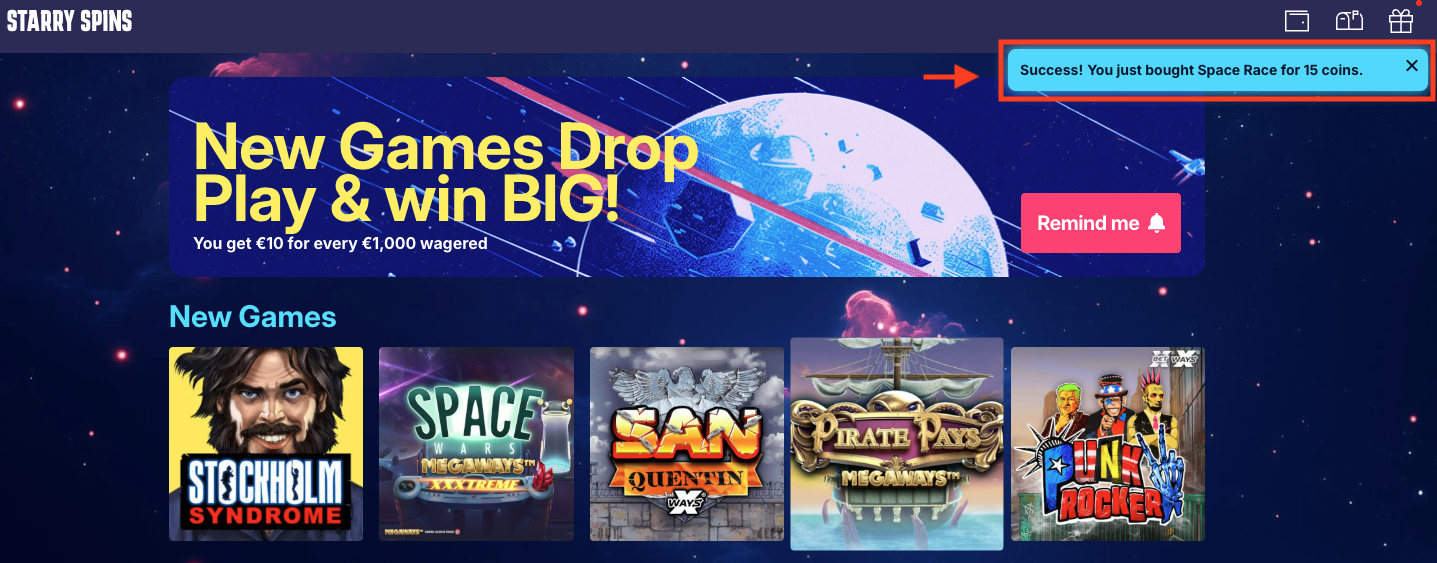
An **on-site notification message** is a **small pop-up** located in the top corner of the page. It displays a small message advertising your desired player engagement: new games, features, promotions, etc.
Players can follow the CTA to a URL of your choice or can close down the message by clicking on the X. Once the player has interacted with the message it will disappear and will not be displayed again to that player.
### 🔈 Shoutout
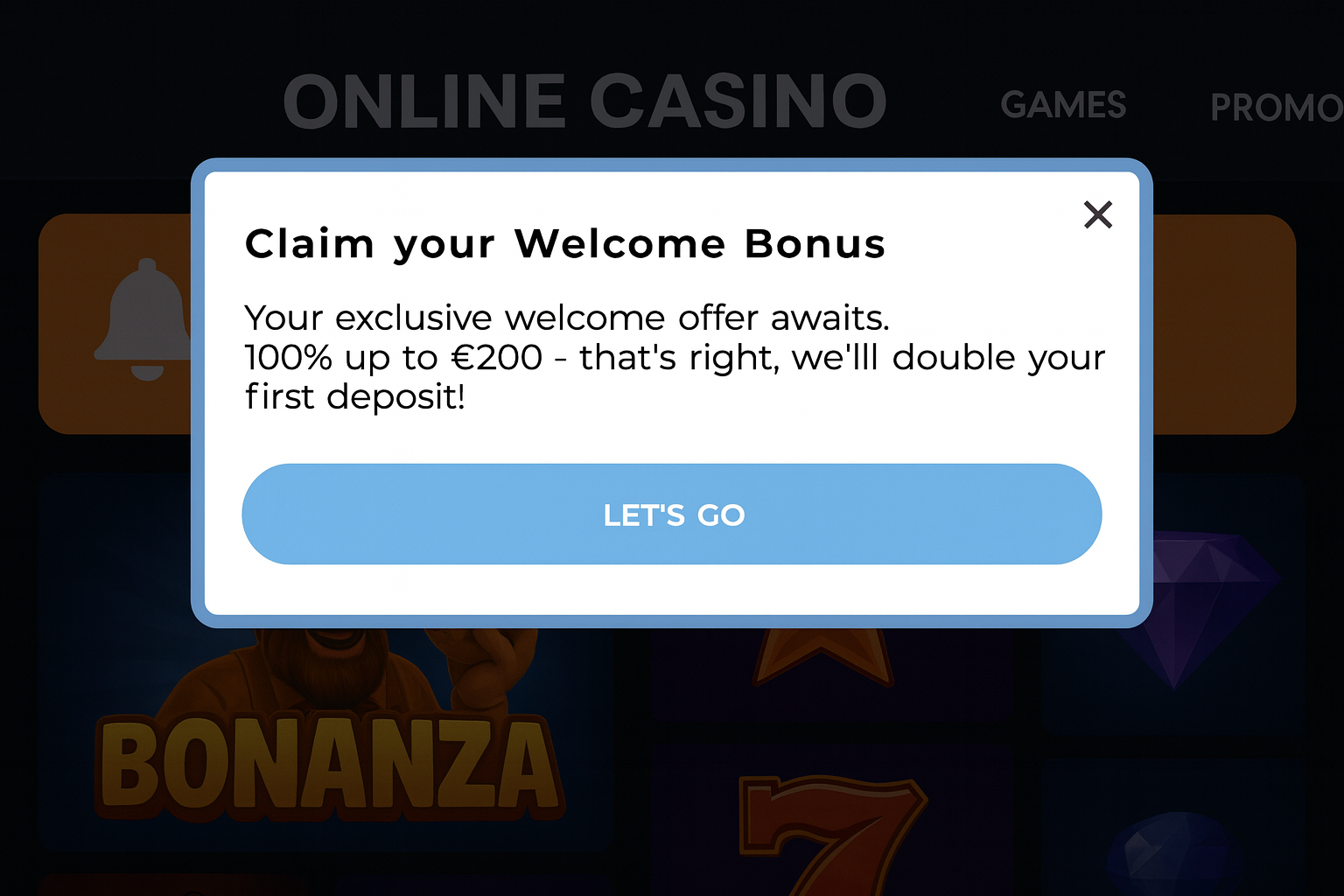
An **on-site notification shoutout** is a pop-up that **takes over the entire page** to display your desired player engagement.
Here you have space to easily display more information to the players and add additional fields, such as a second CTA button, a larger image or bonus terms.
As with the message, the shoutout will also disappear for the player once they have interacted with it.
{% hint style="info" %}
**Here's a few examples to get you started**:
* Encourage first deposit and account set-up. Use On-site Notifications to persuade new players to make their first deposit by promoting your welcome offer.
* Create cross-sell opportunities by introducing players to additional products. Trigger an on-site message offering free spins on a casino game after a sports player has placed a bet.
{% endhint %}
## ⚙️ Setting Up
Using an On-Site Notification in your activity or lifecycle is quite straight-forward. Here we will walk you through the steps and take a look at what each field in the action builder corresponds to. Please note that depending on your integration, your action builder may appear a little different.
Firstly, add an **Action Group** to your activity or lifecycle and select **Add New Action**. Select **On-Site Notification** from the list of **Action Types.**

Under the **Action Data** heading, you will find some pre-existing fields that require information or data.
{% hint style="info" %}
💡 Select the preview icon 👁 on the right-hand side to see the changes you make in real-time. Please note that the preview shown in Fast Track CRM is only a **visual reference**.
{% endhint %}
Let's run through each required field:
* **Image**: Browse the media library to insert any image that you wish to display or click on the **Auto-Generate** tab to generate images using AI.
{% hint style="success" %}
🖼️ **Note on image size**
1. It's important that the image size is taken into consideration, ideally, **it should be around 500KB**. If it's bigger it will affect the loading time for your players and if it's smaller you might compromise on the quality of its appearance.
2. The ideal image size would be around **300x300px**.
{% endhint %}
* **Notification Title**: Grab attention with a catchy title for your notification.
* **Event Name**: Select from Message or Shoutout to determine how visible your notification will be.
* **Notification Message**: The body of text to be displayed underneath the title.
* **CTA Link Address**: Enter the URL (http\:// or https\://) where you'd like to re-direct your players to.
* **CTA Button Text**: The text presented on the CTA to drive engagement.

**Expiry**: Set an expiry date for how long the notification will be available to the players. Please note that the expiration for an on-site notification starts the moment the Activity triggers, unless you schedule the notification. If you schedule it, the counter for expiration will start once the Scheduled Action triggers.
Once you've set-up and are ready to go you can **preview** your on-site notification or even **test the action group** using the [**activity testing**](https://fast-track.gitbook.io/knowledge-base/~/revisions/aNUpux3obVYekyrny3V7/ft-crm/quality-assurance/activity-testing) functionality, before you send it to your players.

{% hint style="success" %}
**🎨 Style the preview according to your brand!**
With CSS you can easily add your brand’s colours, text and colours to your on-site notification preview. This is done through a simple integration. Read the integration guide [**here**](https://www.fasttrack-solutions.com/en/resources/integration/channels/on-site-notifications-and-rich-inbox/front-end-implementation#step-3-apply-your-own-design)**.**
{% endhint %}
{% hint style="danger" %}
**Important**: The preview shown in Fast Track CRM is only a **visual reference.**\
If you notice that the notification looks different on your site compared with the preview, it’s likely because your custom CSS has not yet been implemented. The CSS on your frontend overrides the default styling, so until it’s applied, the values you enter in the notification action fields (colours, fonts, layout, etc.) may not appear exactly as shown in the preview.
{% endhint %}
## 📈 Conversion Tracking
Just like with Email and SMS, we can take a look at the performance of our on-site notifications and check the results in the **Strict Conversion Funnels** found in the **Notification** **Conversion** report from an activity.

Here we can **track the number of players who have received, opened, clicked** and interacted with the on-site notification, as well as those players who **deposited**.

{% hint style="success" %}
**Understanding the Numbers**: Using the example from the image above, let's take a look at the numbers.
* **Sent**: 424 players in the segment received the on-site notification.
* **Opened**: 124 players in the segment opened the on-site notification.
* **Clicked**: 16 players in the segment clicked any link or followed the CTA inside the on-site notification.
* **Deposited**: 16 players in the segment made a deposit, after following the above steps.
{% endhint %}
{% hint style="info" %}
**Note**: Please contact your **Integration Manager** to make sure conversion tracking is set up for your on-site notifications.
{% endhint %}
## How To Get Started
FT CRM uses **Pusher** to support both the Site Inbox and On-site Notifications. You will need to set up a **Pusher** account as the first step in enabling this engagement channel.
To read more about how to get started, check out our [**integration guide**](https://www.fasttrack-solutions.com/en/resources/integration/channels/on-site-notifications-and-rich-inbox/prerequisites/setting-up-your-pusher-account).
{% hint style="success" %}
**Custom Integration?** Maybe you have some other, more unique, requirements and could benefit from a custom integration. Reach out to your Integration Manager to find out more.
{% endhint %}